




Wie behebt man das Problem „Auf neuem iPhone fertigstellen“?

Die Einrichtung eines neuen iPhones ist normalerweise unkompliziert, aber manchmal kann der Vorgang an folgender Stelle hängen bleiben: „Auf dem neuen iPhone fertigstellen“ Statt die Einrichtung abzuschließen und zum Startbildschirm zu gelangen, bleibt das iPhone möglicherweise mehrere Minuten oder sogar deutlich länger auf derselben Seite. Das ist besonders ärgerlich, wenn Sie Ihre Daten bereits übertragen haben und Ihr neues Gerät einfach nur nutzen möchten.
In diesem Leitfaden erklären wir, wie Sie ein neues iPhone reparieren können, das bei „Neues iPhone fertigstellen“ hängen bleibt. Wir beginnen mit einfachen Lösungen und gehen dann zu fortgeschrittenen Systemreparaturen über.

1. Wie kann ich das Problem „Auf neuem iPhone fertigstellen“ beheben?
1.1 Warten Sie noch etwas länger
Wenn Sie eine große Datenmenge übertragen, kann die Einrichtung etwas dauern. Halten Sie beide iPhones nahe beieinander, schließen Sie sie an eine Stromquelle an und warten Sie einen Moment. Sollte sich der Bildschirm ungewöhnlich lange nicht verändern, fahren Sie mit den nächsten Lösungsansätzen fort.
1.2 Überprüfen Sie Ihre WLAN-Verbindung
Eine schwache oder instabile WLAN-Verbindung kann die iPhone-Einrichtung unterbrechen. Stellen Sie sicher, dass beide Geräte mit einem zuverlässigen Netzwerk verbunden sind und halten Sie sich möglichst in der Nähe des Routers auf.
1.3 Halten Sie beide iPhones geladen
Schließen Sie beide iPhones während der Einrichtung an eine Stromquelle an. Dadurch wird verhindert, dass die Übertragung unterbrochen wird, falls der Akku eines der Geräte leer ist.
1.4 Starten Sie das neue iPhone neu.
Ein einfacher Neustart kann vorübergehende Softwarefehler beheben. Bei Modellen mit Face ID drücken Sie kurz die entsprechende Taste. Lautstärke erhöhen schnell drücken Lautstärke verringern dann halten Sie Seite Drücken Sie so lange, bis das Apple-Logo erscheint.
1.5 Beide iPhones neu starten
Falls das neue iPhone weiterhin nicht reagiert, starten Sie beide Geräte neu. Sobald sie wieder eingeschaltet sind, legen Sie sie nahe beieinander, verbinden Sie sie mit WLAN und Strom und versuchen Sie die Einrichtung erneut.
1.6 Altes iPhone aktualisieren
Eine veraltete iOS-Version kann manchmal die Datenübertragung beeinträchtigen. Gehen Sie auf Ihrem alten iPhone zu Einstellungen > Allgemein > Softwareaktualisierung Installieren Sie alle verfügbaren Updates, bevor Sie es erneut versuchen.
1.7 Versuchen Sie ein iCloud-Backup.
Falls die direkte iPhone-zu-iPhone-Übertragung weiterhin fehlschlägt, verwenden Sie stattdessen ein iCloud-Backup. Sichern Sie Ihr altes iPhone, starten Sie die Einrichtung des neuen iPhones neu und wählen Sie die Option zum Wiederherstellen aus einem iCloud-Backup.
1.8 Überprüfen Sie den Systemstatus von Apple.
Einrichtung und Aktivierung können durch vorübergehende Serviceausfälle von Apple beeinträchtigt sein. Überprüfen Sie die Systemstatusseite von Apple, um festzustellen, ob Dienste wie iCloud oder die Geräteaktivierung betroffen sind.
1.9 Setzen Sie das iPhone zurück und beginnen Sie von vorn
Wenn nichts anderes funktioniert, können Sie das neue iPhone löschen und den Einrichtungsvorgang neu starten. Öffnen
Einstellungen
, klopfen
Allgemein
, wählen
iPhone übertragen oder zurücksetzen
dann wählen
Löschen Sie alle Inhalte und Einstellungen
um das Gerät zurückzusetzen.
Stellen Sie sicher, dass wichtige Daten gesichert sind, bevor Sie das Gerät löschen.
2. Bonus: Erweiterte Lösung für iPhone-Systemprobleme mit AimerLab FixMate
Wenn das Problem „Auf neuem iPhone fertigstellen“ durch ein tieferliegendes iOS-Systemproblem verursacht wird, reichen herkömmliche Fehlerbehebungsmaßnahmen möglicherweise nicht aus. In diesem Fall kann der Einsatz eines iOS-Systemreparaturprogramms wie AimerLab FixMate sinnvoll sein.
FixMate Es wurde entwickelt, um verschiedene Systemprobleme von iPhones und iPads zu beheben, ohne dass Benutzer komplizierte Firmware-Prozeduren manuell durchführen müssen. Es kann bei Problemen wie dem Hängenbleiben des Geräts beim Apple-Logo, dem Wiederherstellungsmodus, Boot-Schleifen, eingefrorenen Bildschirmen oder anderem ungewöhnlichen iOS-Verhalten hilfreich sein.
So beheben Sie iPhone-Systemprobleme mit AimerLab FixMate:
- Laden Sie FixMate herunter und installieren Sie es auf Ihrem Mac oder Windows-Computer.
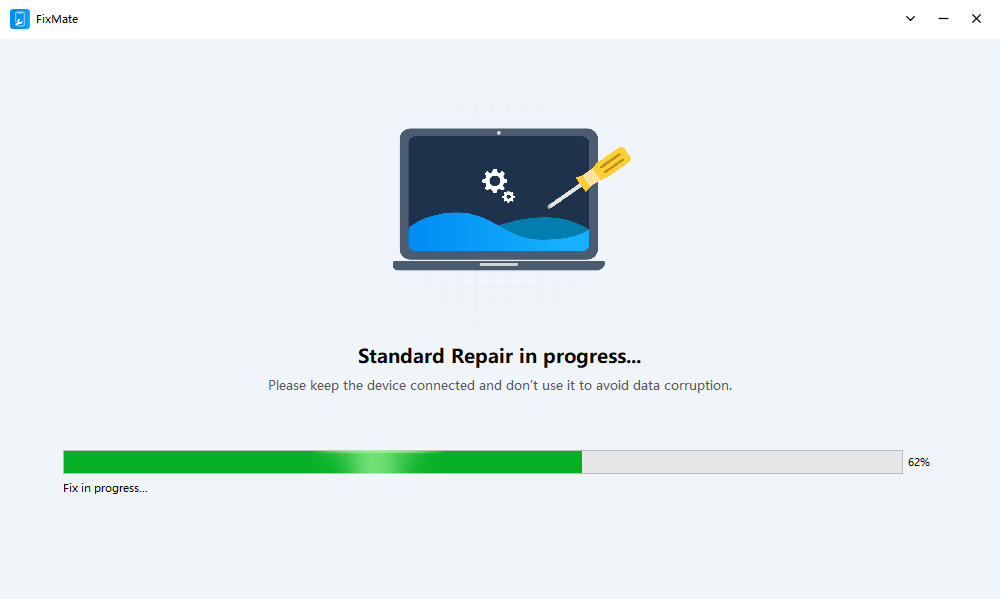
- Verbinden Sie Ihr iPhone mit einem kompatiblen USB-Kabel mit dem Computer, starten Sie FixMate und wählen Sie die passende iOS-Systemreparaturoption: Standardreparatur oder Tiefenreparatur
- Folgen Sie den Anweisungen auf dem Bildschirm, um d Laden Sie das für Ihr Gerät empfohlene Firmware-Paket herunter.
- Bestätigen Sie die Reparatur und lassen Sie FixMate den Reparaturvorgang abschließen.
- Sobald die Reparatur abgeschlossen ist, trennen Sie das iPhone und prüfen Sie, ob der Einrichtungsprozess normal funktioniert.
3. Fazit
Wenn die Einrichtung eines neuen iPhones bei „Auf neuem iPhone fertigstellen“ hängen bleibt, kann die Freude darüber schnell verfliegen. Glücklicherweise ist das Problem oft nur vorübergehend und lässt sich beheben, indem Sie Ihre WLAN-Verbindung überprüfen, beide Geräte aufladen, die iPhones neu starten, iOS aktualisieren oder anstelle der direkten Datenübertragung ein iCloud-Backup verwenden.
Besteht das Problem nach diesen grundlegenden Lösungsansätzen weiterhin, könnte ein schwerwiegenderer iOS-Systemfehler vorliegen. In diesem Fall ist AimerLab FixMate eine sinnvolle Option für die erweiterte iPhone-Systemreparatur. Der geführte Reparaturprozess hilft bei der Behebung systembedingter Probleme, ohne dass eine komplizierte manuelle Fehlersuche erforderlich ist.
Für Benutzer, die die Standardlösungen ausprobiert haben, aber immer noch nicht über den Einrichtungsbildschirm hinauskommen,
FixMate
ist eine praktische letzte Möglichkeit zur Fehlerbehebung, die es wert ist, ausprobiert zu werden, bevor man professionelle Hilfe in Anspruch nimmt.
- Wie kann man das Problem beheben, dass der Download von iOS 26 ewig dauert?
- Wie kann ich häufig besuchte Orte auf dem iPhone anzeigen?
- Warum ist iOS 26 so langsam?
- Wie behebt man den Fehler „Beim Überprüfen des Passcodes Ihres iPhones ist ein Fehler aufgetreten“?
- Wie lade ich die iOS 27 Beta auf mein iPhone herunter?
- Wie behebt man das Problem, dass eine iPhone-Datei im Status „Warten“ hängen bleibt?
- Wie kann man Pokemon Go auf dem iPhone fälschen?
- Übersicht über den Aimerlab MobiGo GPS-Standort-Spoofer
- Wie ändere ich den Standort auf meinem iPhone?
- Top 5 gefälschte GPS-Standort-Spoofer für iOS
- GPS-Standortfinder-Definition und Spoofer-Vorschlag
- So ändern Sie Ihren Standort auf Snapchat
- Wie kann ich den Standort auf iOS-Geräten finden/teilen/ausblenden?