




Wie lässt sich das Problem „iPhone nicht aktiviert – Kontaktieren Sie Ihren Mobilfunkanbieter“ beheben?

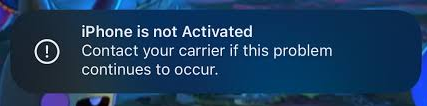
Wenn Sie die Meldung „
Das iPhone ist nicht aktiviert – Wenden Sie sich an Ihren Mobilfunkanbieter, falls das Problem weiterhin besteht.
Wenn Sie Ihr iPhone einrichten möchten, kann das frustrierend sein. Dieses Problem verhindert, dass Sie die Ersteinrichtung abschließen und Ihr Gerät nutzen können. Glücklicherweise gibt es dafür meist erkennbare Ursachen und praktische Lösungen. Dieser Leitfaden untersucht die Gründe für das Problem, dass das iPhone nicht aktiviert wird, und bietet Schritt-für-Schritt-Anleitungen zur Behebung, inklusive einer zusätzlichen Lösung mit einem professionellen Reparaturwerkzeug.
1. Was sind die Ursachen für den Fehler „iPhone ist nicht aktiviert“?
Mehrere Faktoren können dieses Problem auslösen:
1.1 Probleme mit der SIM-Karte
Ihr iPhone muss eine gültige SIM-Karte eines unterstützten Mobilfunkanbieters erkennen, um die Aktivierung abzuschließen. Häufige SIM-Kartenprobleme sind:
- SIM-Karte nicht korrekt eingesetzt
- Die SIM-Karte ist beschädigt oder abgelaufen.
- Die Verwendung einer SIM-Karte eines anderen Anbieters als demjenigen, der das iPhone gesperrt hat, ist
1.2 Beschränkungen durch Mobilfunkanbieter
Einige iPhones sind an einen bestimmten Mobilfunkanbieter gebunden und können daher nur mit einer SIM-Karte dieses Anbieters aktiviert werden. Der Versuch, das Gerät mit einem nicht unterstützten Anbieter zu aktivieren, führt zu einem Fehler. Sollte der Aktivierungsserver des Anbieters vorübergehend nicht erreichbar sein, kann die Aktivierung ebenfalls fehlschlagen.
1.3 Netzwerk- oder Systemprobleme
- Instabiles WLAN- oder Mobilfunknetz
- Apples Aktivierungsserver sind zeitweise ausgefallen.
- iOS-Fehler oder Bugs, die eine ordnungsgemäße Aktivierung verhindern
1.4 Gerätestatusprobleme
- Das iPhone wurde als verloren oder gestohlen gemeldet und daher auf die schwarze Liste gesetzt.
- Aktivierungssperre oder Konflikte mit der Apple-ID aus früheren Besitzverhältnissen
2. Wie lässt sich das Problem „iPhone nicht aktiviert – Wenden Sie sich an Ihren Mobilfunkanbieter“ beheben?
Hier sind einige Methoden, um den Fehler „iPhone ist nicht aktiviert – Wenden Sie sich an Ihren Mobilfunkanbieter, wenn dieses Problem weiterhin auftritt“ zu beheben.
2.1 Überprüfen und ersetzen Sie Ihre SIM-Karte
Stellen Sie sicher, dass die SIM-Karte ordnungsgemäß eingesetzt ist und funktioniert:
- Schalten Sie Ihr iPhone aus und entfernen Sie die SIM-Karte.
- Überprüfen Sie die SIM-Karte auf Beschädigungen oder Verschmutzungen.
- Setzen Sie die SIM-Karte ordnungsgemäß wieder ein.
- Testen Sie nach Möglichkeit eine andere gültige SIM-Karte desselben oder eines unterstützten Mobilfunkanbieters.
Wenn Ihr iPhone an einen Mobilfunkanbieter gebunden ist, vergewissern Sie sich, dass Sie die richtige SIM-Karte des Anbieters verwenden.
2.2 Starten Sie Ihr iPhone neu oder erzwingen Sie einen Neustart.
In vielen Fällen hilft ein einfacher Neustart, kleinere Fehler zu beheben:
Für iPhone 8 und höher:
- Drücken Lautstärke erhöhen , Dann Lautstärke verringern und halten Sie die Seitlicher Knopf bis das Apple-Logo erscheint.
Für iPhone 7 / 7 Plus:
- Drücken und halten Leiser-Taste + Ein-/Ausschalter bis das Apple-Logo erscheint.
Für iPhone 6s und ältere Modelle:
- Drücken und halten Home- und Ein-/Ausschalter bis das Apple-Logo erscheint.
Ein erzwungener Neustart kann helfen, vorübergehende Softwarefehler zu beheben, die die Aktivierung des iPhones verhindern.
2.3 Verbindung zu einem stabilen Netzwerk herstellen
Zur Aktivierung ist eine zuverlässige Verbindung zu den Servern von Apple erforderlich:
- Verbinden Sie sich mit einem stabilen WLAN-Netzwerk, anstatt sich ausschließlich auf mobile Daten zu verlassen.
- Vermeiden Sie öffentliche oder eingeschränkte Netzwerke, die Aktivierungsserver blockieren könnten.
- Testen Sie die Verbindung über einen mobilen Hotspot, falls die WLAN-Verbindung instabil ist.
2.4 Aktivierung über einen Computer
Sollten weiterhin Netzwerkprobleme bestehen, versuchen Sie, Ihr iPhone über einen Computer zu aktivieren:
- Unter Windows verwenden Sie iTunes
- Auf dem Mac verwenden Sie den Finder.
Schritte:
- Verbinde das iPhone mit dem Computer.
- Starten Sie iTunes oder den Finder und wählen Sie Ihr Gerät aus.
- Folgen Sie den Anweisungen, um das iPhone zu aktivieren.
- Sie können sich dafür entscheiden Aktualisieren (behält Ihre Daten) oder Wiederherstellen (Löscht das Gerät).
Die Verwendung eines Computers kann einige netzwerkbezogene Aktivierungsprobleme umgehen.
2.5 Apple-ID und Aktivierungssperre prüfen
Ein iPhone, das zuvor mit einer anderen Apple-ID verknüpft war, kann die Aktivierung blockieren:
- Geben Sie während der Einrichtung die korrekte Apple-ID und das korrekte Passwort ein.
- Wenn Sie ein gebrauchtes Gerät gekauft haben, bitten Sie den Vorbesitzer, es aus seinem Konto zu entfernen.
- Bei Geräten für Unternehmen oder Schulen wenden Sie sich bitte an den Administrator, um die Geräteregistrierung zu bestätigen.
2.6 iOS aktualisieren oder wiederherstellen
Manchmal verhindern iOS-Fehler die ordnungsgemäße Aktivierung:
- Verbinde das iPhone mit einem Computer.
- Verwenden Sie den Finder oder iTunes, um Aktualisieren iOS ohne Datenlöschung.
- Wenn das fehlschlägt, wählen Sie iPhone wiederherstellen um das System von Grund auf neu zu installieren.
Dadurch wird sichergestellt, dass beschädigte Systemdateien nicht die Ursache für den Aktivierungsfehler sind.
3. Bonus: Systemprobleme mit AimerLab FixMate beheben
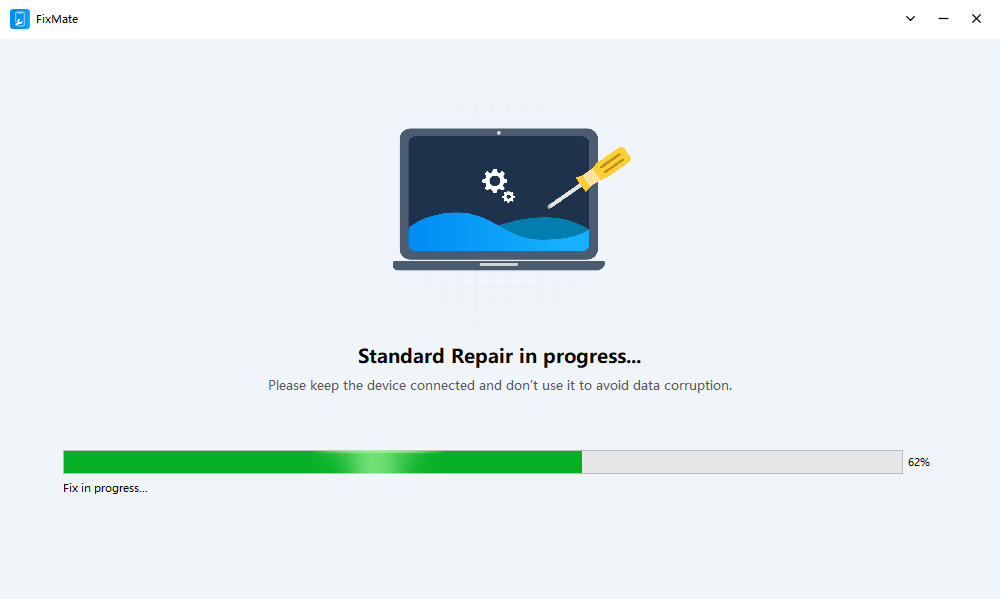
Wenn die Standard-Fehlerbehebung fehlschlägt, kann das Problem durch tieferliegende iOS-Systemprobleme verursacht werden. In solchen Fällen kann ein professionelles Reparaturtool wie beispielsweise ein iOS-Reparaturtool hilfreich sein. AimerLab FixMate kann helfen.
Warum FixMate verwenden?
- Behebt iOS-Systemprobleme, die die Aktivierung verhindern.
- Die Standardreparatur behebt die meisten Probleme, ohne Daten zu löschen.
- Die Tiefenreparatur behebt schwerwiegende Systemfehler, die durch normale Fehlerbehebung nicht behoben werden können.
- Wiederherstellungsmodus mit einem Klick aktivieren/deaktivieren.
- Anfängerfreundlich, keine technischen Vorkenntnisse erforderlich.
Wann man FixMate verwenden sollte:
- Gerät hängt auf dem Bildschirm „Kontaktieren Sie Ihren Mobilfunkanbieter“ fest
- Die Aktivierung schlägt trotz korrekter SIM-Karte und korrektem Netzwerk fehl.
- Das iPhone friert ein oder weist Softwarefehler auf
- Weitere iOS 26.x-Fehler, die die Aktivierung verhindern
Mit FixMate können Sie Ihr iPhone schnell und sicher in einen voll funktionsfähigen Zustand zurückversetzen.
4. Fazit
Die Meldung „iPhone ist nicht aktiviert – Wenden Sie sich an Ihren Mobilfunkanbieter, falls das Problem weiterhin besteht“ kann durch Probleme mit der SIM-Karte, Einschränkungen des Mobilfunkanbieters, Netzwerkprobleme, den Gerätestatus oder Systemfehler verursacht werden. Die meisten Nutzer können das Problem beheben, indem sie ihre SIM-Karte überprüfen, das iPhone neu starten, eine stabile Netzwerkverbindung nutzen, das Gerät über einen Computer aktivieren oder die Apple-ID-Einstellungen überprüfen.
Wenn Standardmethoden jedoch versagen, liegt das Problem häufig an tieferliegenden iOS-Systemfehlern. Genau da setzt es an. AimerLab FixMate wird dadurch unentbehrlich. Seine leistungsstarken Reparaturfunktionen, die einfache Bedienung und die sicheren Reparaturmodi machen es zur empfohlenen Lösung für die effiziente Behebung von Aktivierungsproblemen ohne Datenverlust.
Für alle, die Probleme mit der iPhone-Aktivierung haben,
FixMate
bietet eine schnellere, sicherere und zuverlässigere Möglichkeit, Ihr Gerät in Betrieb zu nehmen.
- Wie kann man das Problem beheben, dass der Download von iOS 26 ewig dauert?
- Wie kann ich häufig besuchte Orte auf dem iPhone anzeigen?
- Warum ist iOS 26 so langsam?
- Wie behebt man den Fehler „Beim Überprüfen des Passcodes Ihres iPhones ist ein Fehler aufgetreten“?
- Wie behebt man das Problem „Auf neuem iPhone fertigstellen“?
- Wie lade ich die iOS 27 Beta auf mein iPhone herunter?
- Wie kann man Pokemon Go auf dem iPhone fälschen?
- Übersicht über den Aimerlab MobiGo GPS-Standort-Spoofer
- Wie ändere ich den Standort auf meinem iPhone?
- Top 5 gefälschte GPS-Standort-Spoofer für iOS
- GPS-Standortfinder-Definition und Spoofer-Vorschlag
- So ändern Sie Ihren Standort auf Snapchat
- Wie kann ich den Standort auf iOS-Geräten finden/teilen/ausblenden?